Unreal 5 Material Dirt & Wetness System

Custom Material Dirt & Wetness System

This custom material Dirt and Wetness System was built by me from scratch utilizing Unreal Engine 5's Blueprints, Material Functions, and Material Parameters. I also utilized a bit of C++ to develop my own custom material node and also created my own plugin package to handle the C++ implementation of the dirt node system. This system includes a rain volume and dirt volume that can dynamically apply the dirt and wetness effect procedurally based on the character's interaction with it. This allows me to create realistic rain wet transitions based on where rain hits the surface first and also pays attention to occlusion. Same goes for the dirt effect, where only what comes in contact gets the dirt applied to the character's surface. This prototype was super fun to work on and only took me 2 weeks to implement. Hope you enjoy!

Cloth Asset


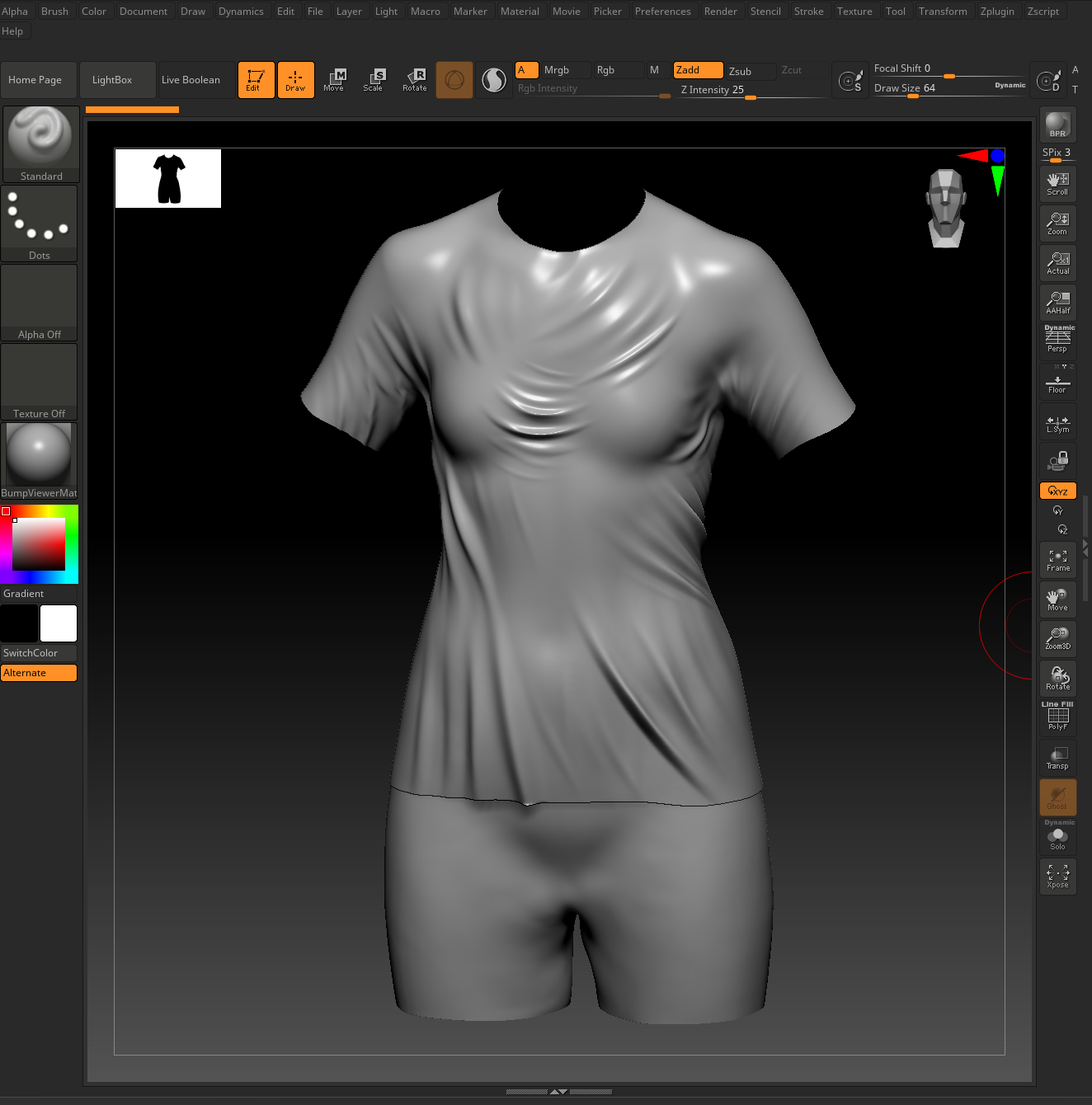
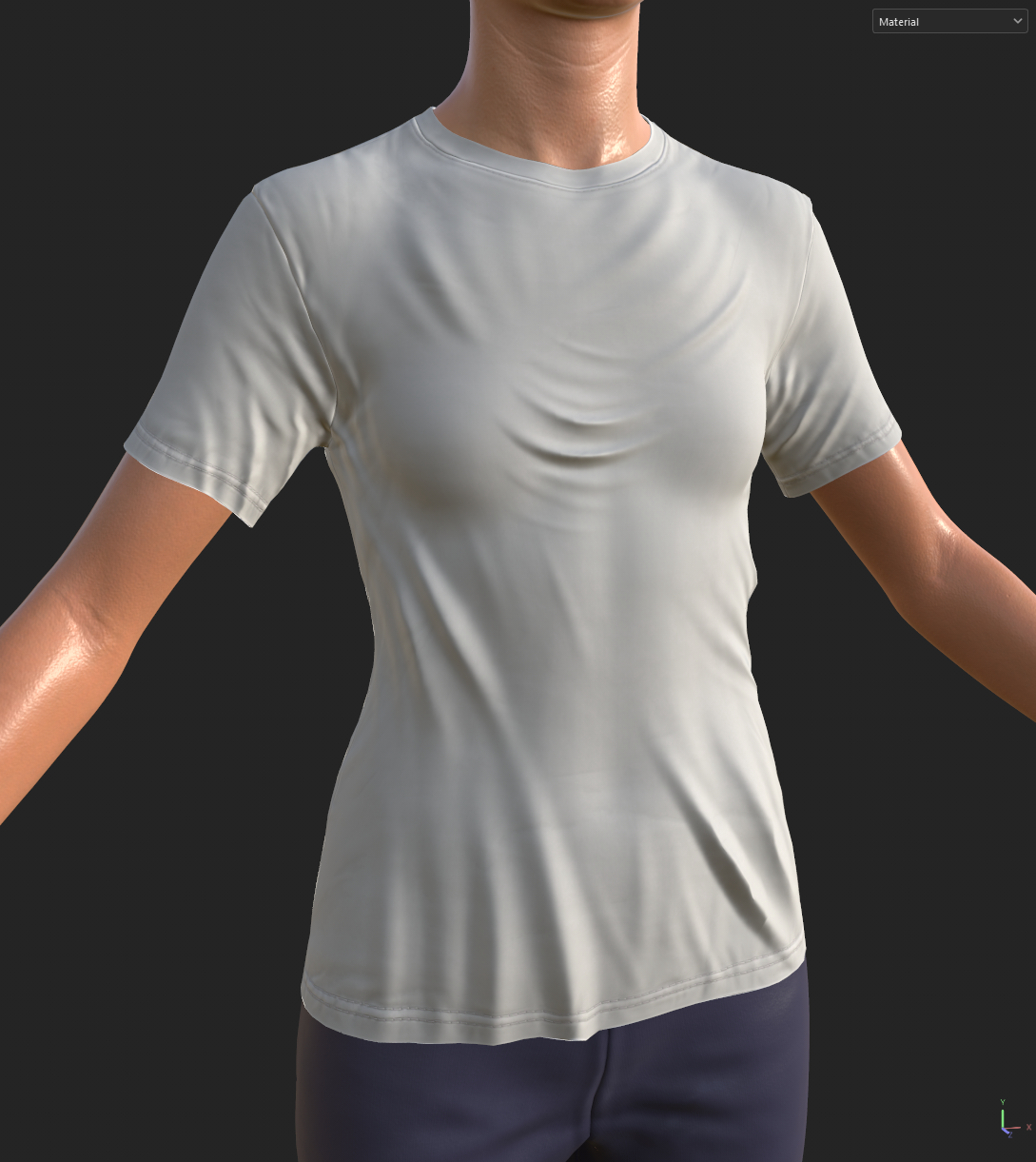
Zbrush - Wet Wrinkles Sculpt

When I started with this project, I began by creating my initial MetaHuman character in Unreal. I then took the default T-shirt/shorts it gave me to start making modifications to it. I knew for me to achieve this wet look, I would have to create a custom sculpt in ZBrush to simulate the effect when a T-shirt is wet. Looking at reference, I hand-sculpted the wrinkles forming all over to suggest tension where the wet clothing sags and clings to the body.


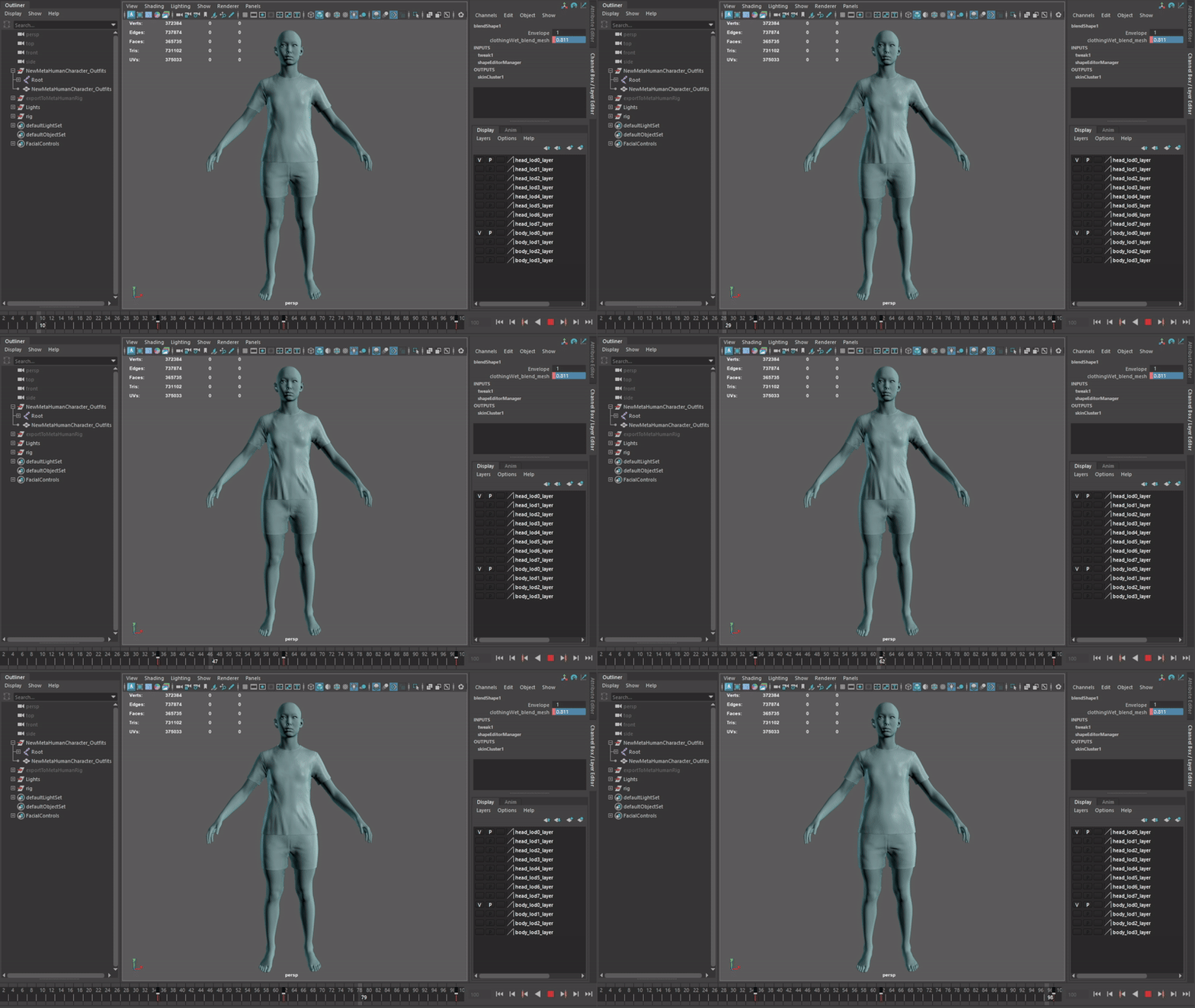
Maya - MetaHuman Rig Wetness Blend

I then took my ZBrush sculpt, imported it back into Maya, where I created a new clothingWet blendshape, which I added back to the MetaHuman rig. This is what I would toggle in Unreal to simulate the wet look, along with the material modifications I was about to make next.

Texturing


Substance Painter - Wet Shirt Textures

The wet look in the material shaders could have been done purely procedurally through a complex Unreal Material setup, although for a look like this to be truly believable, I decided to go with a more hand-crafted artistic approach. For this, I used Substance Painter to author these maps. How these maps would get used in Unreal would be all fed through a procedural system I would create to make the rain application more controllable.

Bake Normals
(High Wrinkles)

My first step was to take the ZBrush sculpt I did and apply it to the low-res model. In Substance, I baked this down to generate my normal maps to expose the high-fidelity wrinkles.

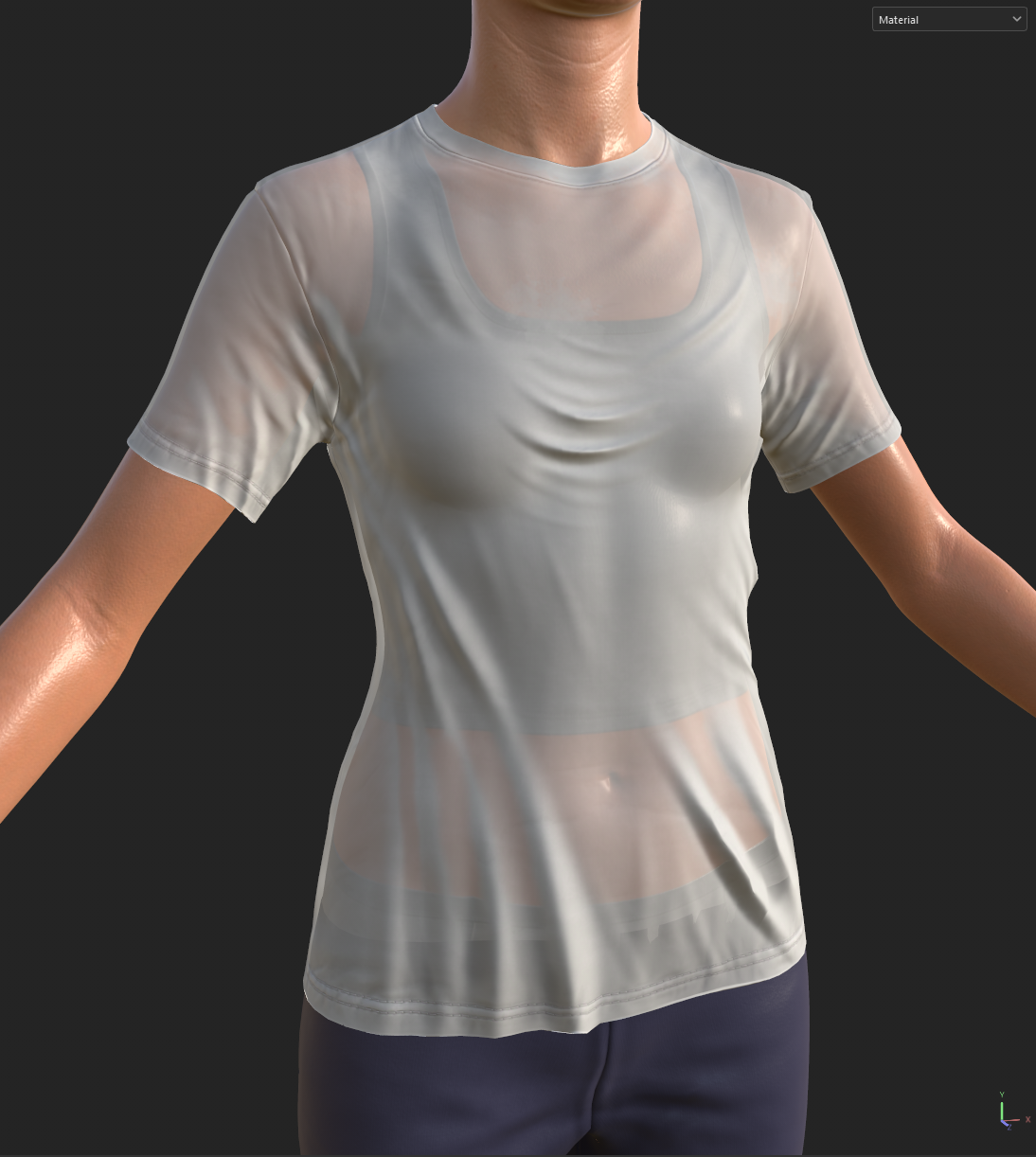
Paint Opacity
(See-Through Areas)

I then applied an opacity to my Substance shader to paint in the see-through areas of the shirt. Looking at reference, I noticed the areas that stuck to the body were usually more see-through than the wrinkles or areas that were further away from the body.

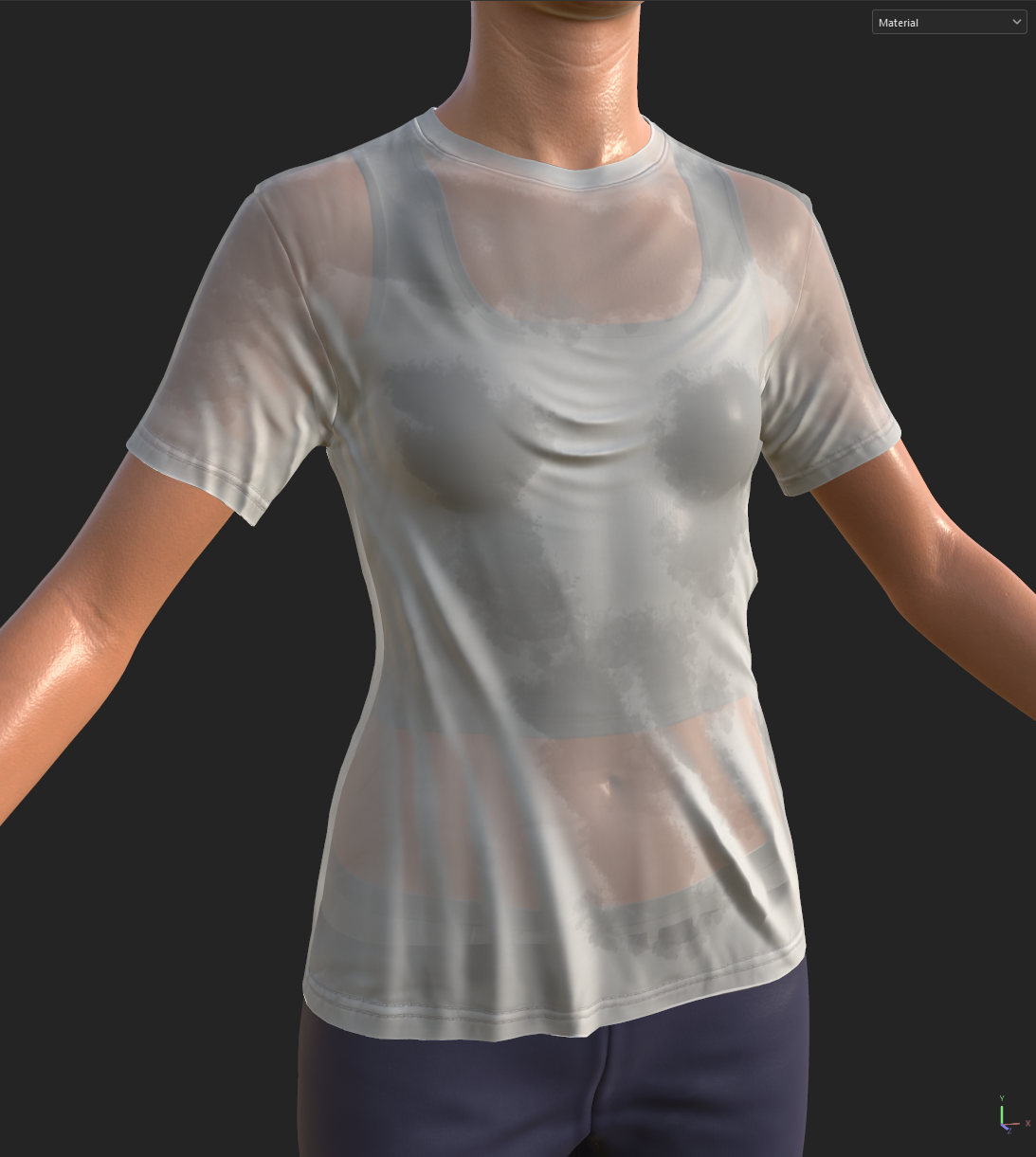
Paint Darkening
(Contact Areas)

Last, while also looking at the same reference, it appeared that areas of a wet white T-shirt that were stuck to the body always had a darker shade to them, like water was still collected in those areas. I ended up painting darkness over the opacity, and this helped a lot in achieving the wet look I was after.


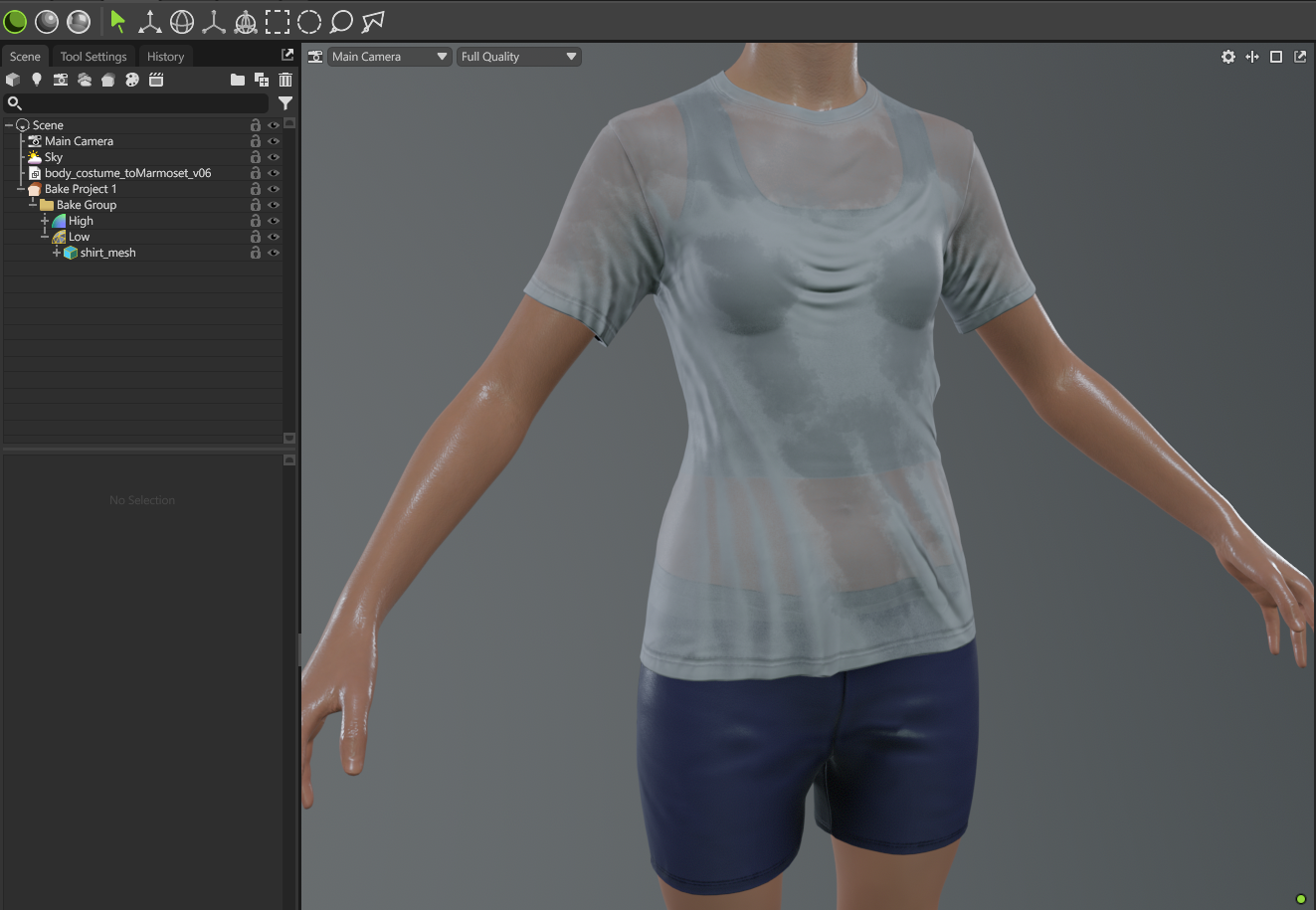
Marmoset Toolbag - Baked SSS To Color Map
(For Unreal Performance Reasons)

Going into this, I knew if I were to generate a true SSS material in Unreal that this would come with a heavy performance cost. This is why I decided to achieve this see-through wet look by baking my Substance shader results into a standard PBR BaseColor using Marmoset, which is an excellent tool for baking things like this.

Wetness Setup


Unreal – Custom HLSL Material Function
(Rain Wetness Reveal Mask)

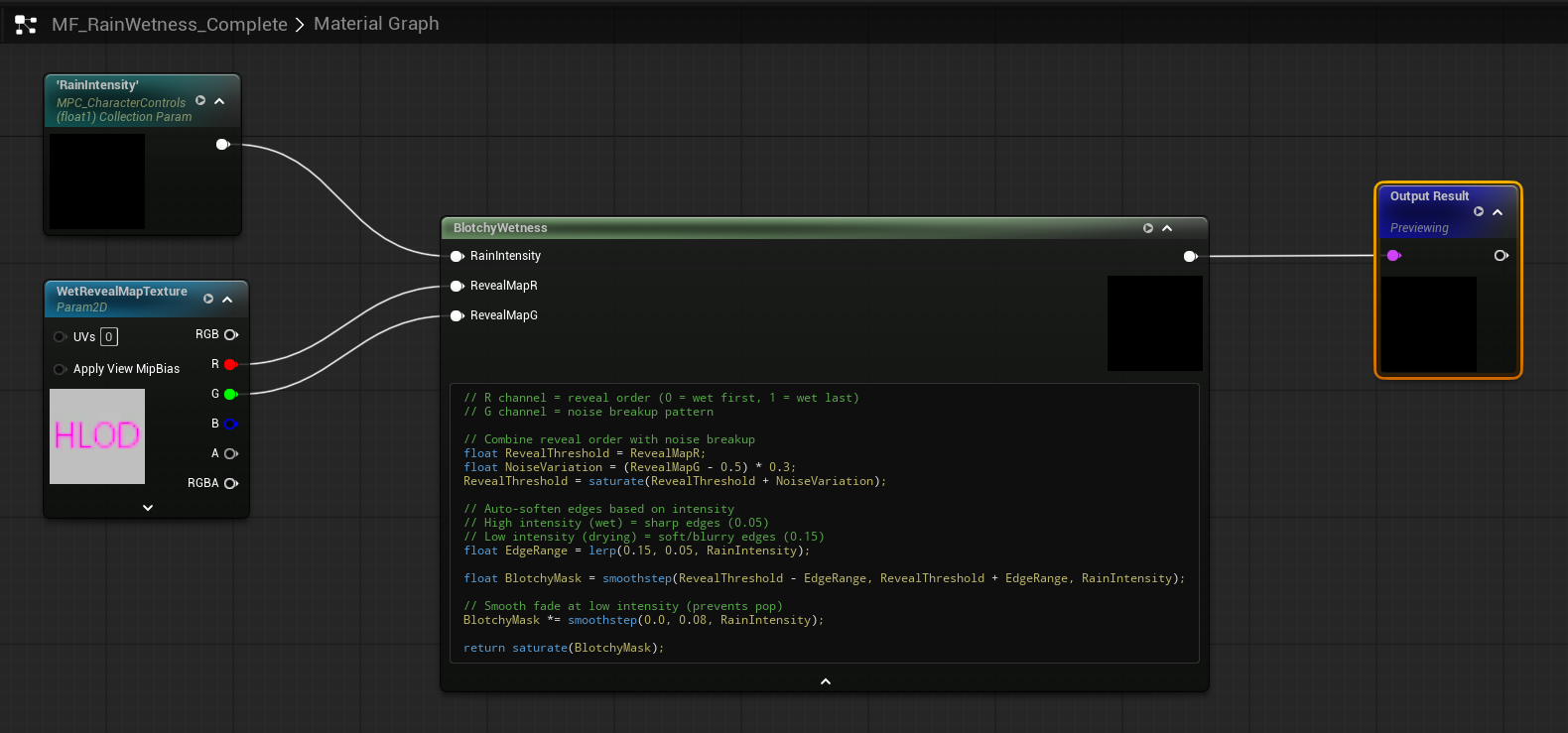
For my wetness system, I wanted wet materials to be revealed by rainfall in a controllable and physically believable way. To achieve this, I authored a custom HLSL function inside Unreal’s material editor that combines multiple packed mask channels and procedurally blends their reveal using smoothstep-based thresholding. The shader takes two mask inputs stored in a single RGB texture and blends their progression based on a RainIntensity value driven by a Material Parameter Collection. This produces a stable 0–1 output that controls the dry-to-wet transition with adjustable edge softness, noise breakup, and intensity-based behavior, while remaining efficient and reusable across materials.


Input Masks

Wetness Reveal Mask
(Black Gets Wet First,
Then White Last)

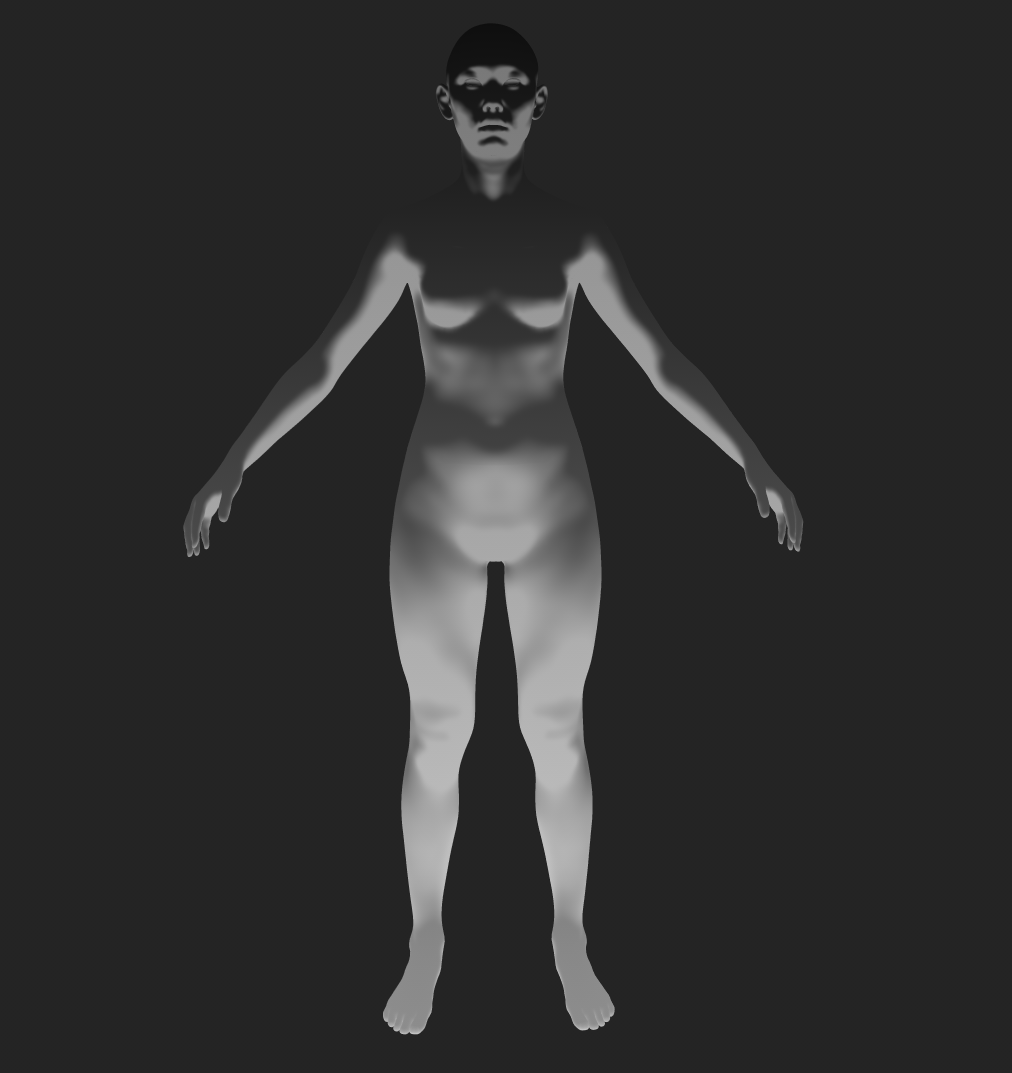
One of the maps I feed into the custom node was a Wetness Reveal Mask, which, based on a black-to-white value, would control where the rain would hit the body first and where it would hit last. Thinking about how rain actually hits a character, it would typically hit the head, then the shoulders, then work its way down the legs at the end. Also, it would hit occluded areas last, like underneath arms.

Wetness Noise Mask
(Simulates The Rain Droplet Pattern)

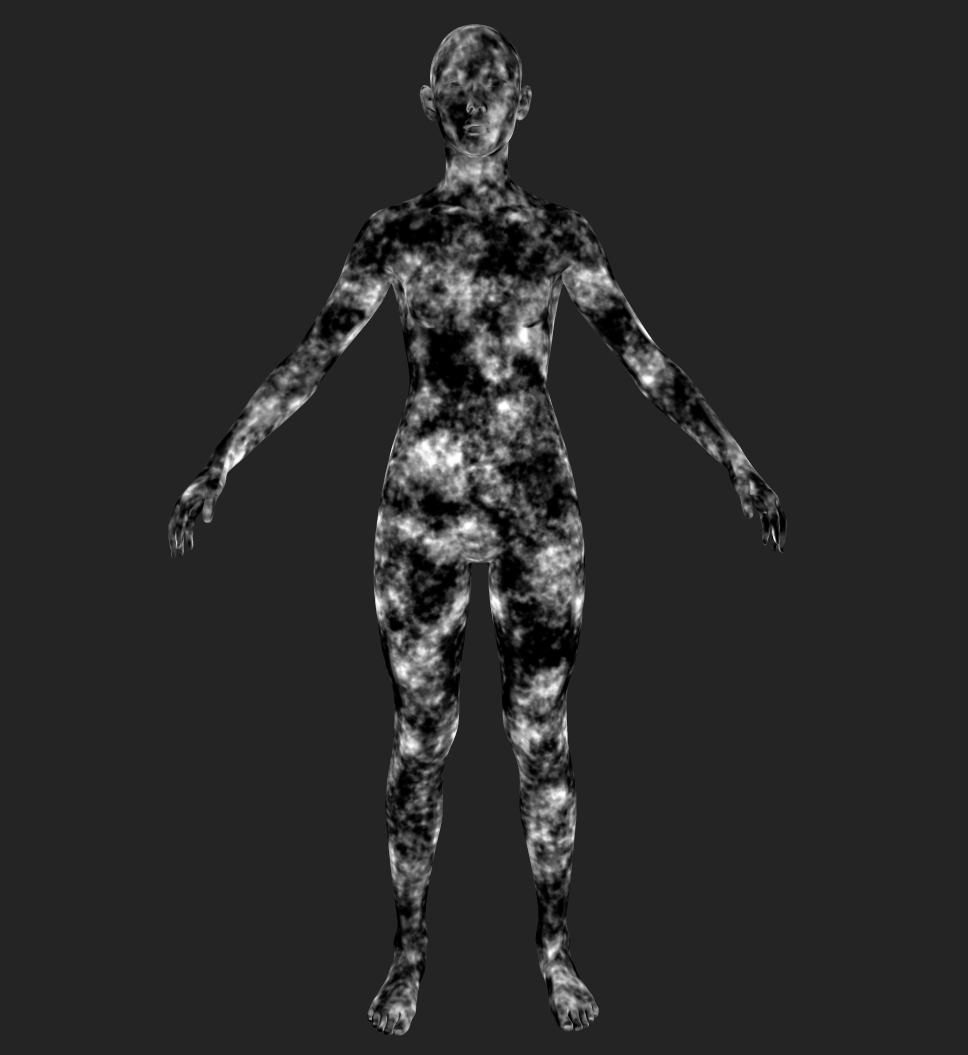
Another mask I feed in was to control how the raindrop pattern would look when it hit the body. I wanted to create a splat look as rainwater would accumulate. This noise is even more noticeable on the clothing, as it makes it look like water is filling up through the fibers of the fabric, which makes the effect look even more believable.


Rain Volume Blueprint

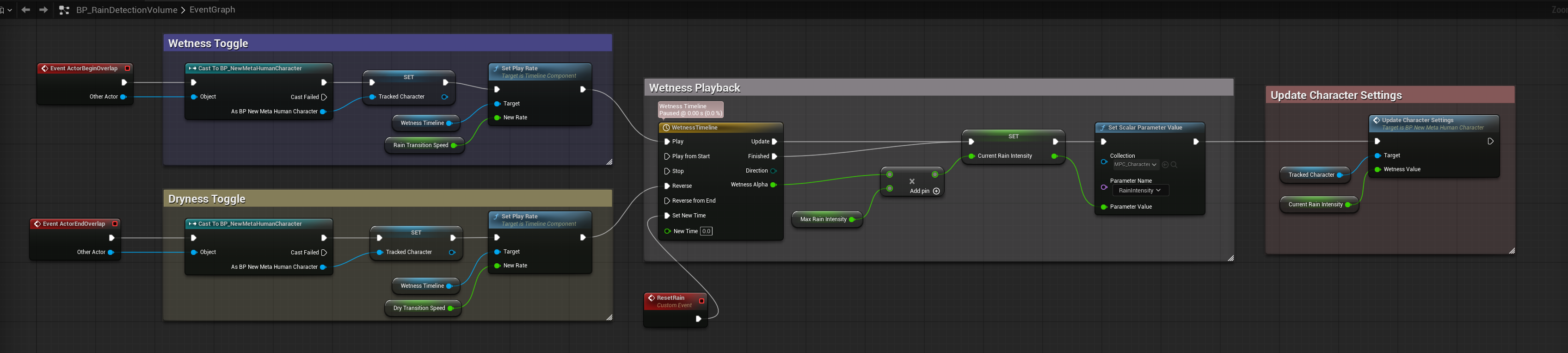
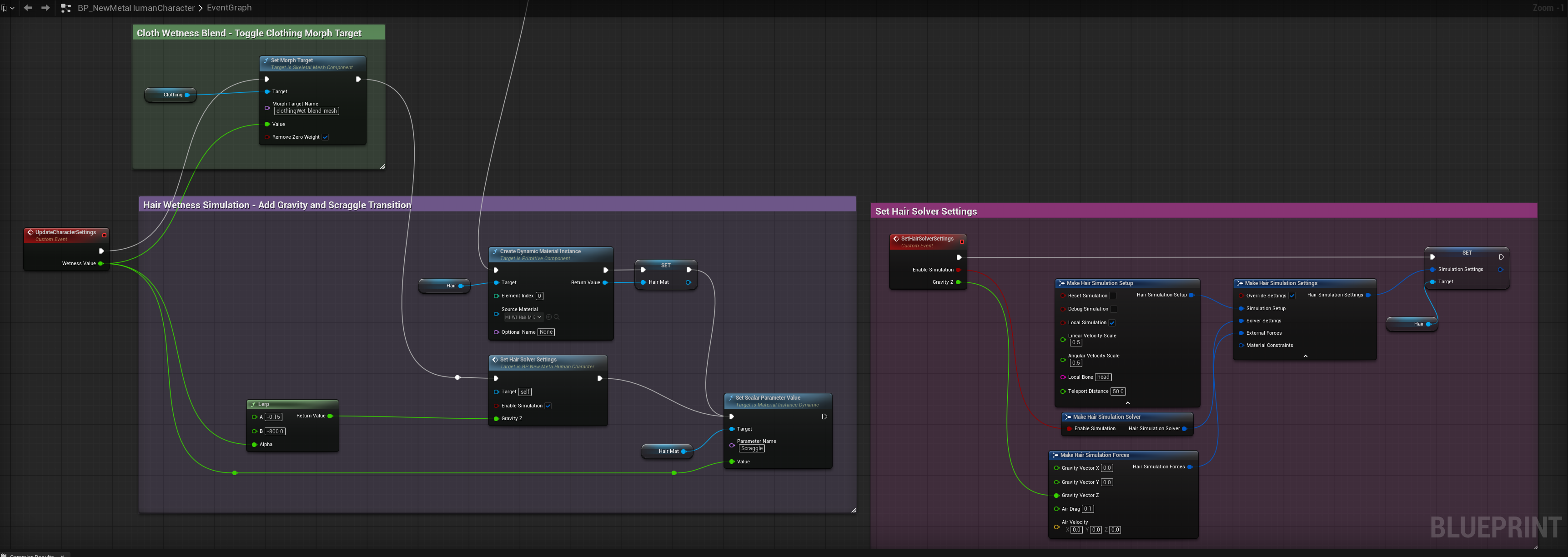
I created a set of Material Parameter Collection values to feed my rain volume blueprint logic. Once a character entered the rain volume, it would play a timeline I created to reveal the rain in a highly art-directed way. This timing value output then fed the material custom node I set up to distribute the wet look through the authored masks that were created.


Clothing Wet Blend/Hair Settings Blueprint

The volume blueprint would also call an update to the character blueprint that would toggle the wet cloth blendshape I added to the MetaHuman rig. It also updated the hair simulation settings to apply more gravity and sag to the hair, giving the illusion the hair was heavier and damp. I also cranked up the Scraggle of the hair material setting to help it look more frizzy and darker after being covered in water.

Dirt Setup


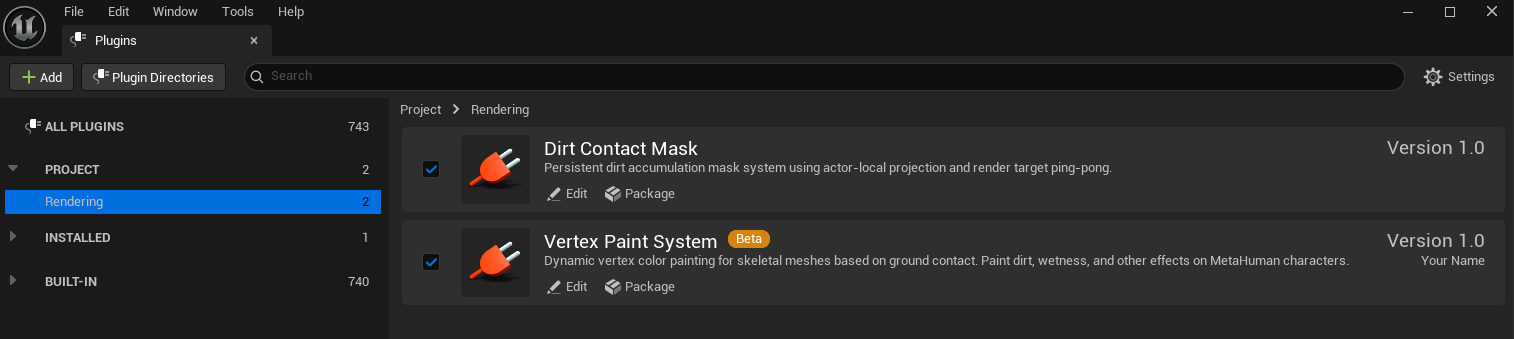
Unreal - Custom C++ Plugin
(Created Vertex Paint System For Dirt Masks)

For the Dirt System, I knew I needed to make a few custom C++ nodes to handle the dirt mask through vertex painting. I wanted this to be more modular by creating very specific nodes that I could package together. This required me to write a plugin. The "Vertex Paint System" I created pretty much allows you to add a Dirt Volume BP to your scene. You apply these plugin nodes directly to your character's BP, and it will paint the vertex if a mesh surface comes in contact with it. I then use the vertex paint to generate a mask I can feed into my dirt shaders to reveal dirt markings based on where the character contacts the dirt surface.


Input Overlay Textures w/ Opacity

These dirt textures were created in substance so I could art direct the look of the dry and wet dirt and how it looked on skin versus clothing fabric. I could of spent a lot more time creating something in Unreal that was a bit more procedural but I instead chose the more art directable route which allowed me to achieve a specific look without the worry of the dirt/mud looking generic.
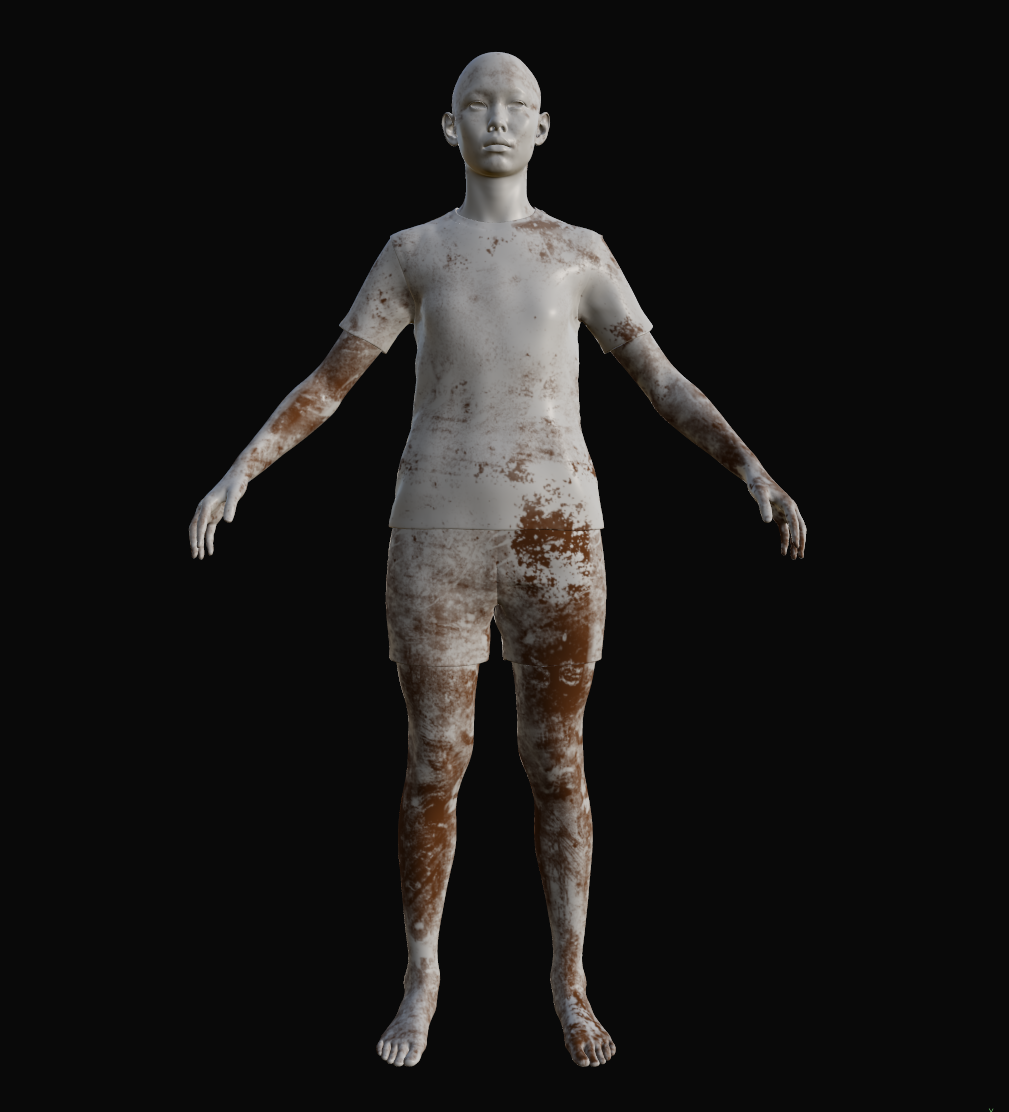
3D human figure in shorts and a t-shirt covered in patches of brown dirt against a black background.

Dry Dirt
(Lighter Color, Soft No Normal, No Specular)

The dry dirt look I wanted to be very powdery, like the character went over a dusty dirt surface. This dirt is lighter brown and almost has no normal or specular.
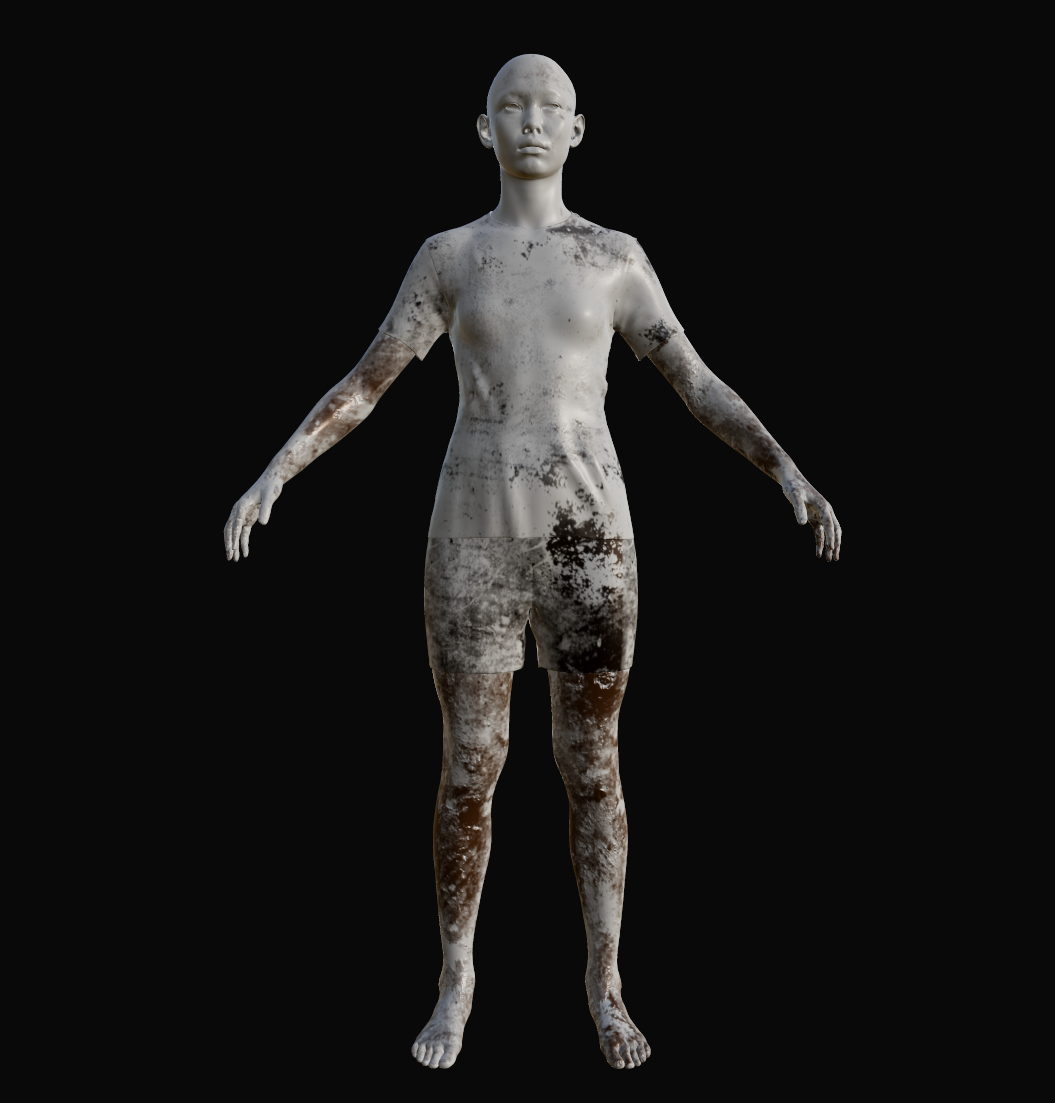
3D model of a human figure with arms outstretched, wearing a textured shirt and shorts with wet dirt stains and patches on the arms, legs, and torso.

Wet Dirt
(Darker Color, Raised Normal, High Specular)

The wet dirt look I wanted to be more clumpy, like the dry dirt that was once on the character solidified into something a bit more solid. This dirt is darker brown and has a bit more height to the normal and is a lot more specular.


Dirt Volume Blueprint

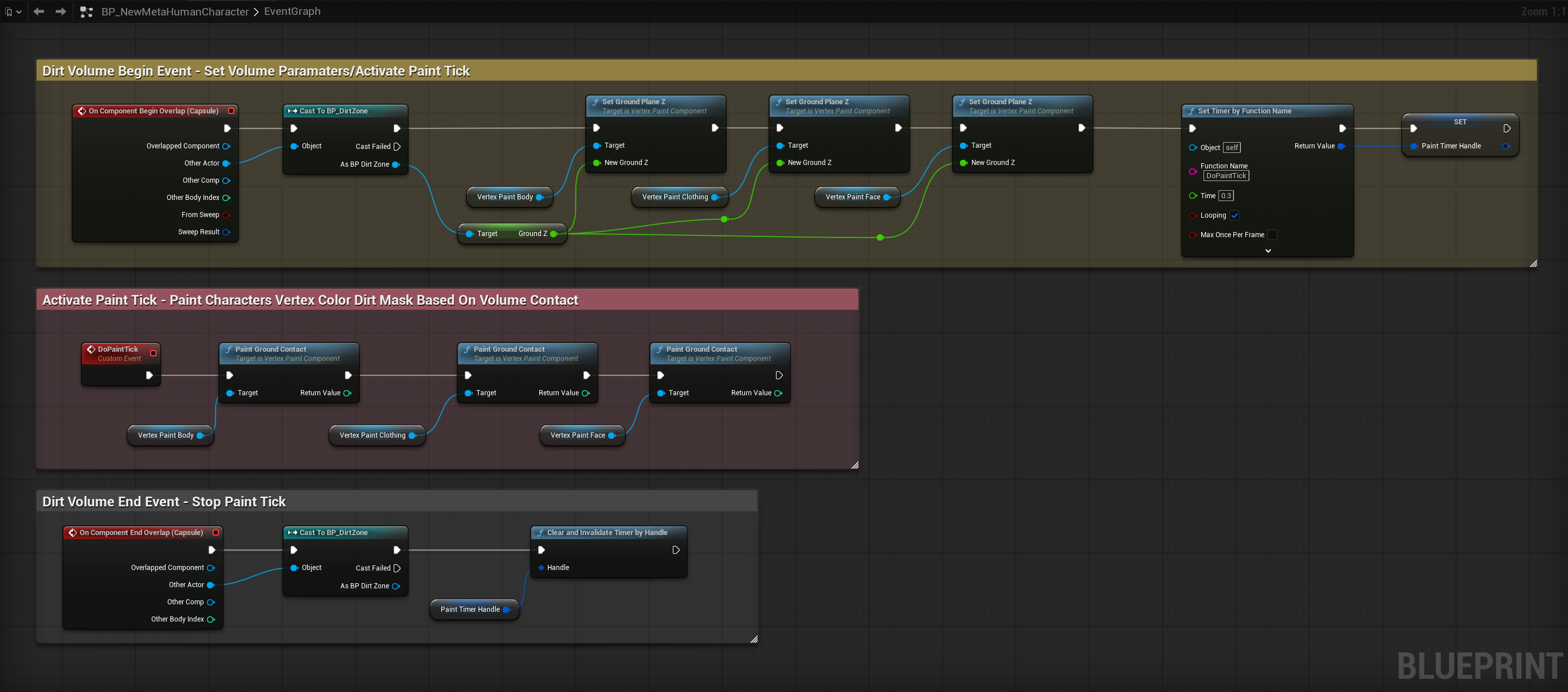
The Dirt Volumes I created allow users to set the ground height and control the radius of how much dirt can affect the contact surface. This is all set through a volume manipulator that allows them to easily see how this will look in their scenes. Since the body’s arms and legs are the closest to the ground, they will receive the most dirt markings. Because I wanted my clothing and head to also be able to accumulate dirt, I created separate dirt volumes for those parts as well so I could increase each radius size. After these volumes detect an overlap, my custom nodes then execute a paint tick event, which then paints the vertex of the surface provided. I then use that to create the contact mask which feeds into my dirt shader.
Unreal Engine Blueprint visual script showing nodes for dirt volume events that set volume parameters, activate paint tick for vertex color dirt mask on character parts, and stop paint tick on component end overlap.